My Ride K-12
Welcome to My Ride K-12 - Easily track your child's school transportation information.
Zillah School District in partnership with Tyler Technologies' introduces My Ride K-12 app and website make it easy for families to stay informed about their student’s school transportation. With just a few simple steps, you can securely view bus routes, pickup and drop-off times, and any updates from your district’s transportation team—all from your computer or mobile device.
Whether you're using the website or the mobile app, My Ride K-12 helps ensure you have the most up-to-date information right at your fingertips. It's free, easy to use, and designed to give parents/guardians and caregivers peace of mind.
Ready to get started? Follow the steps below to register, connect your student, and access their transportation details.
My Ride K-12 Website
How to Register & Access the My Ride K-12 Website
-
Go to the website:
Open a web browser and go to myridek12.tylerapp.com. -
Create an account:
-
Click Sign Up in the top-right corner of the screen.
-
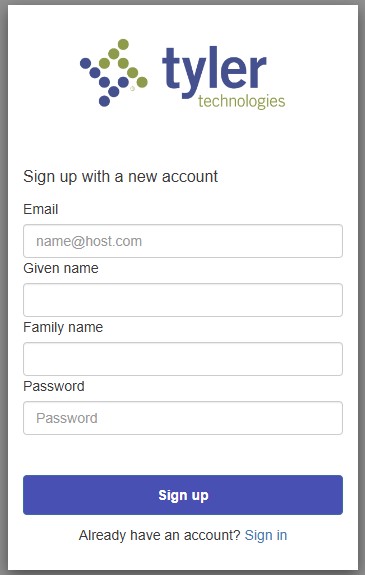
Enter your email address, first and last name, and choose a password.
-
Click Sign Up to complete registration.
-
-
Confirm your email:
-
Check your email inbox for a confirmation message.
-
Click the link in the email to activate your account.
-
-
Find & Add Zillah School District
-
When prompted, search for Zillah School District.
-
Click the blue Select button.
-
-
Add your student(s):
-
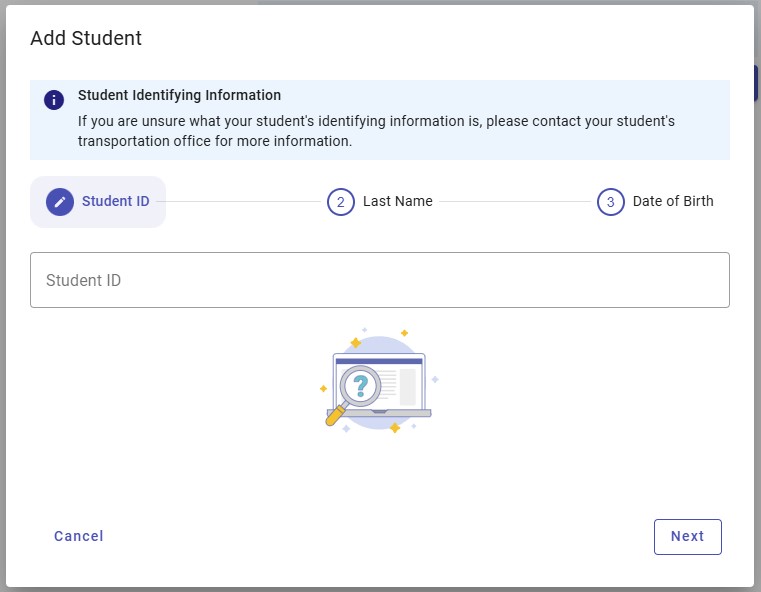
Enter your child’s Student ID, Last Name, and Current Grade Level.
-
Repeat this step to add more students.
-
-
View transportation information:
-
Once a student is linked, click on their profile to view bus routes and other transportation details.
-
-
Share access with someone else (optional):
-
Select a student and click the Share button.
-
Enter the email of the person you want to share with.
-
That person will get an email to link the student to their account.
-
They must also register with My Ride K-12 if they haven’t already.
-
My Ride K-12 Mobile app
Step 1: Download the App
-
Go to the Google Play Store (Android) or Apple App Store (iPhone).
-
Search for My Ride K-12 and download the app.
Step 2: Open the App & Find Zillah School District
-
Open the app once it's installed.
-
When asked, search for Zillah School District.
-
Tap the blue Select button to continue.
Step 3: Create an Account
-
If you don’t already have an account, tap Register.
-
Enter your email address, first and last name, and create a password.
-
Tap Sign Up.
Step 4: Confirm Your Email
-
Check your email inbox for a confirmation message.
-
Click the link in the email to activate your account.
Step 5: Add Your Student(s)
-
Log in to the app.
-
Go to My Students and tap the + (Add Student) button.
-
Enter your child’s Student ID, Last Name, and Current Grade Level.
-
Repeat this step for each child you want to add.
Step 6: View Bus Information
-
Tap your child’s profile to see their bus number, stop location, pickup/drop-off times, and more.
Step 7: Share Access (Optional)
-
Want to share your child’s info with another parent or guardian?
-
Tap your child’s profile, then tap Share.
-
Enter the other person’s email address. They’ll receive a confirmation email.
-
They’ll need to create a My Ride K-12 account if they don’t already have one.
Stay Updated
Make sure your app stays up to date by checking for updates in the app store. Stay logged in to get transportation notifications, even if the app isn’t open.